A short, hands-on tour of your new smart safety glasses.
Your glasses
Put the glasses on, follow along, and in a few minutes you will know what Blue is for. Keep this page open on a laptop or tablet next to you. Some of the steps ask you to look at the screen through the glasses.
You need your phone with the Airwave app, the glasses, and the charging case.
The rule. Blue listens after you wake it and stops when you tap it to sleep. It records the photos and videos you take, and the notes you ask for. You're in control.
Start here
Before you put them on
Do these in order. Your glasses ship asleep to save the battery.
1
Get the Airwave app
Scan the code with your phone camera or use a store link. Create or join your workspace.
Opens the App Store on iPhone and Google Play on Android.
Clear tabs cover both lenses and the charging points on the nose bridge. Peel them all off so the glasses can charge.
3
Back in the case, lid closed
The case wakes the glasses up. Leave them there until you are in your workspace in the app.
4
Power on when Blue says so
Blue walks you through setup in the app. When it tells you, put the glasses on.
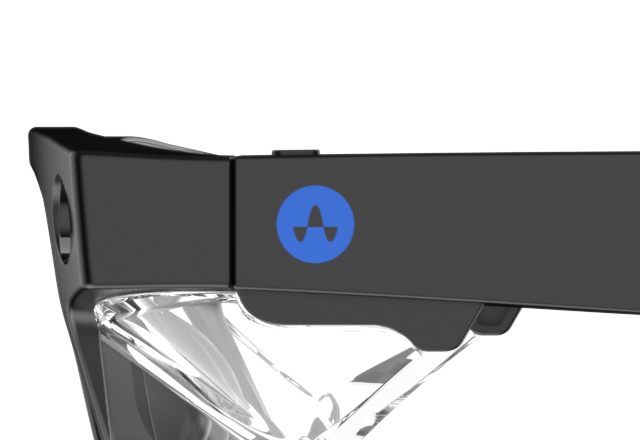
Hold
Hold the button on top of the left stem.Keep holding until you hear "Power on."
5
Connect
When you hear "System ready," tap the Glasses icon in the app, then Connect Glasses. Blue takes it from there.
Step 1
Blue talks hands free
Two gestures. Press to wake Blue, tap to put it to sleep. Everything in this workbook uses them.
Press once
You:Press the button on top of the left stem once.Wait for Blue to say "Here."
Blue:Here.
You:Tell me a joke.
Blue:Tells you a joke.
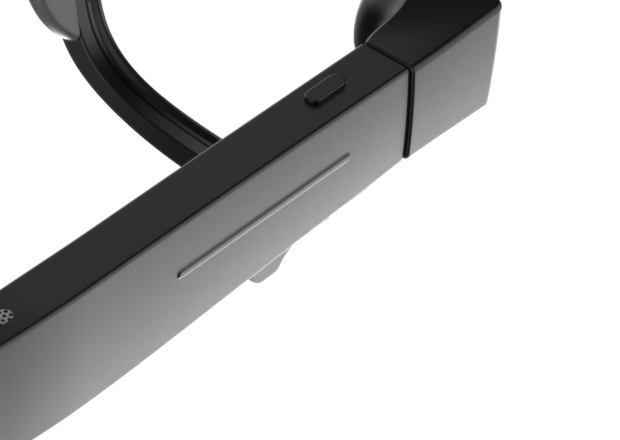
Tap once
You:Tap the volume strip on the right stem once.Blue goes to sleep. You hear a sound.
How to read the steps. Lines in italic are things you do. Lines in regular type are things you say out loud. Blue's lines are in blue.
Step 2
Blue keeps notes
Same loop. Wake, talk, sleep.
Press once
You:Press the left button once.Wait for "Here."
Blue:Here.
You:Take a note.
Blue:Says it will take notes for you.
You:(Describe your surroundings. Whatever is in front of you.)
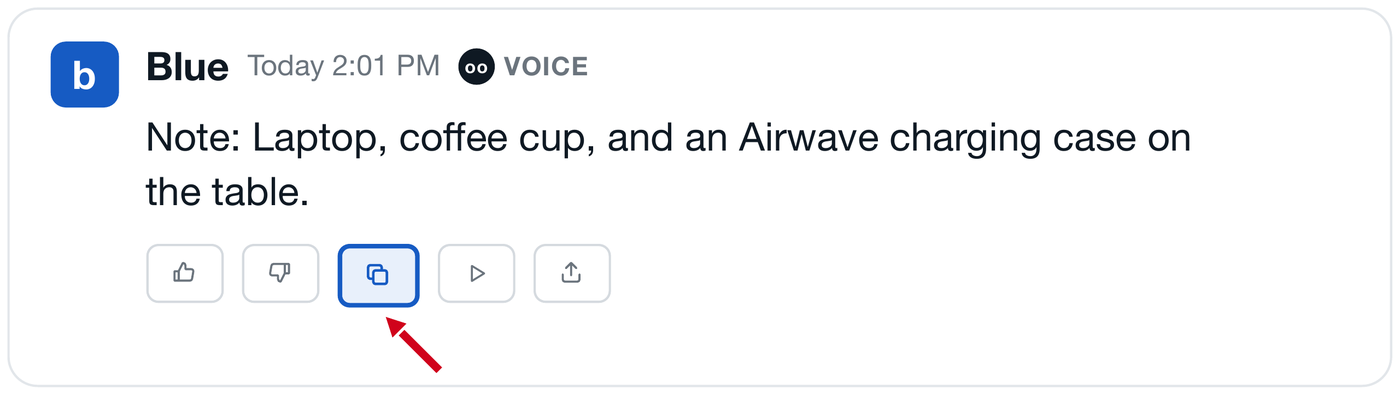
Blue:Saves it as a note you can copy and paste. In the app it looks like this.
In the app
Tap once
You:Tap the right strip once.Blue goes to sleep.
Keep the app open on your phone. Blue's replies show up there as you talk. Liked the reply? Tap thumbs up under it. Didn't? Thumbs down. That is how Blue learns.
A note before step 3
The camera and the privacy light
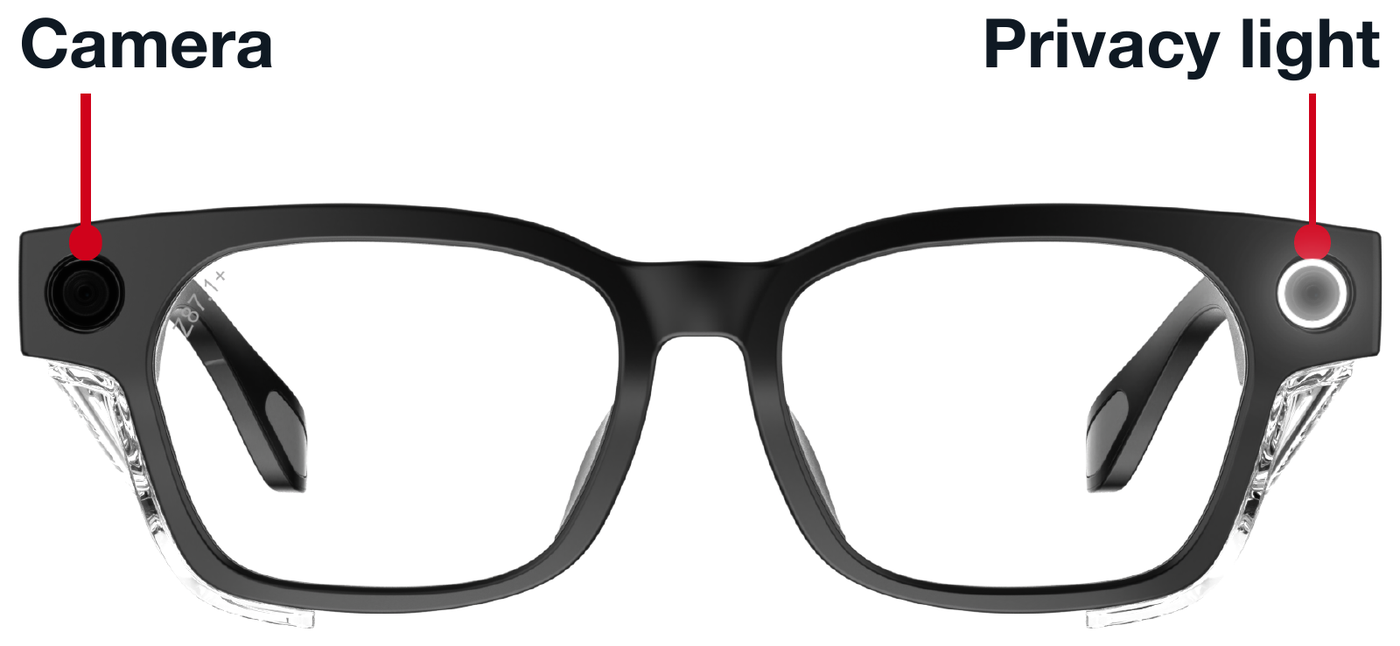
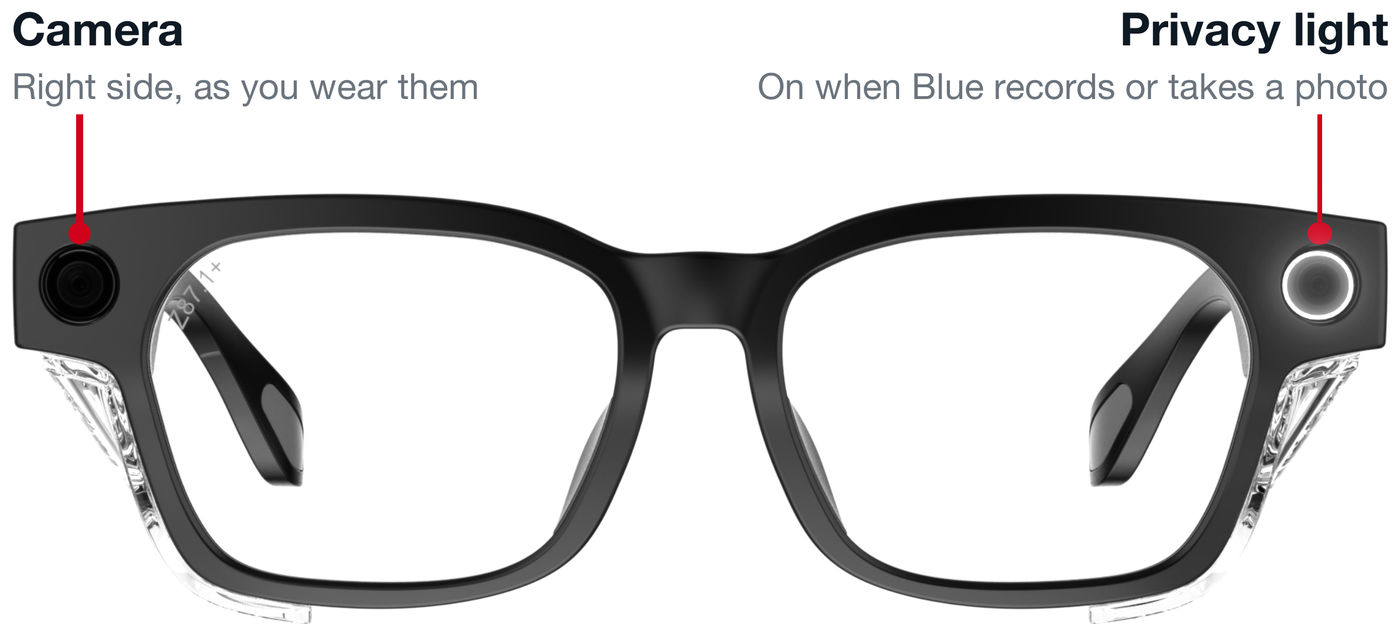
When the camera is on, the privacy light is on. People around you can see it.
Camera and privacy light
Blue does
✓Listen after you press the button and it says "Here."
✓Take a photo or video when you ask it to.
✓Save small photo previews in your chat. Full photos and videos import through the app.
✓Answer your questions from your workspace docs or the internet.
Blue does not
✕Listen before you wake it, or after you tap to sleep.
✕Take photos or video without you asking.
✕Use the camera with the privacy light off.
✕Connect your glasses to the internet. Blue goes online for you, in the app.
Step 3
Blue sees
First time with the camera. Look at anything.
Press once
You:Press the left button once.Wait for "Here."
Blue:Here.
You:What am I looking at?
Blue:Taking a photo through your glasses.
Blue:Describes what it sees.
Tap once
You:Tap the right strip once.Blue goes to sleep.
You know the two gestures now. From here the steps just say press to wake and tap to sleep.
Step 4
Blue reads a nameplate
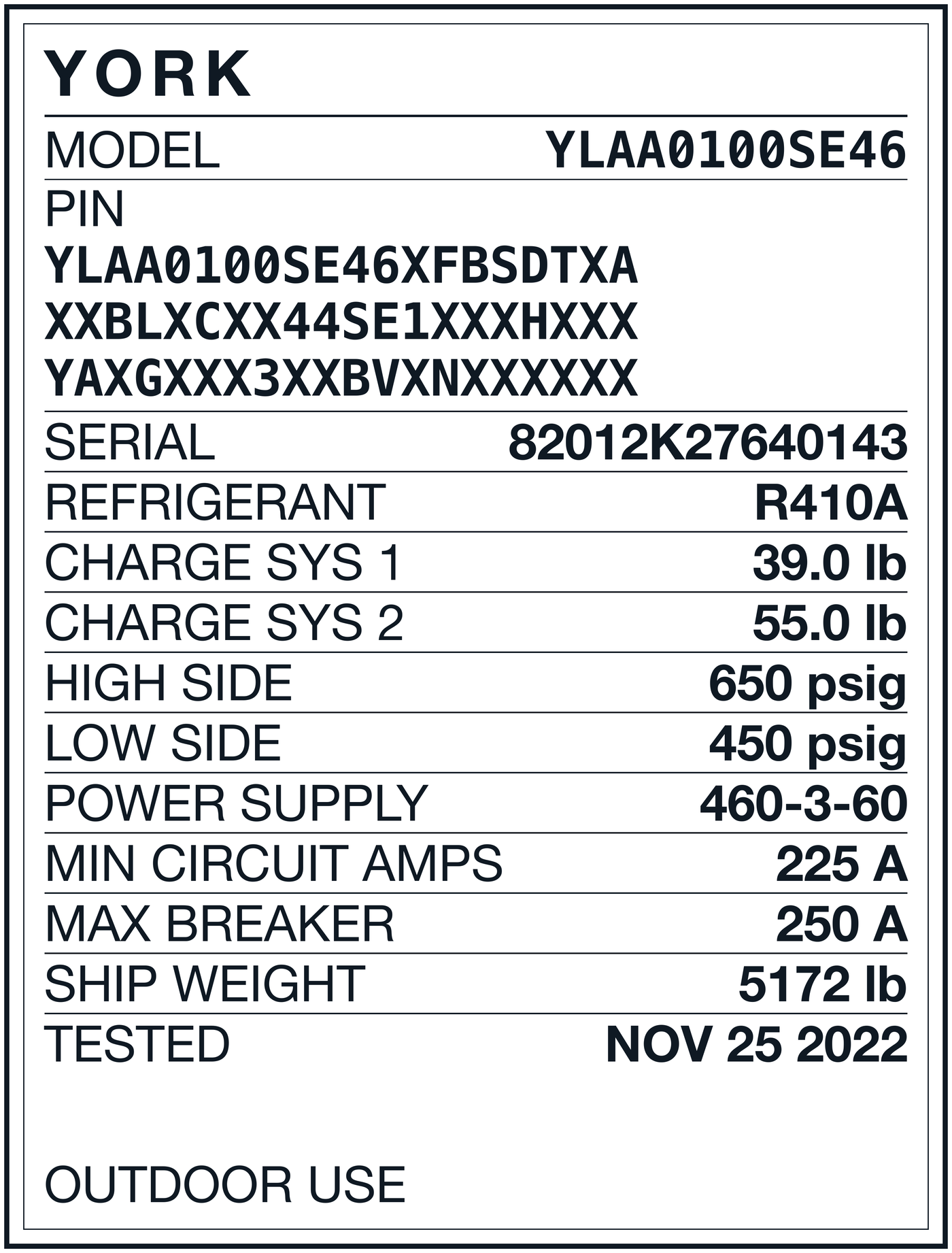
A York nameplate is below. Look at it through the glasses.
Look at this
You:Press to wake.
Blue:Here.
You:Can you take a picture of this nameplate and tell me what refrigerant it takes?
Blue:Taking a photo through your glasses.
Blue:Reads back what it saw, tells you the refrigerant.
Leave Blue awake. Step 5 is the same conversation.
Step 5
Blue looks things up
Blue is still awake from step 4 and remembers the unit. Keep going.
You:Ok add two filter driers for this unit to my parts list.
Blue:Looks up the parts for the York unit, adds them, reads the list back.
You:Single tap to sleep.
Blue found the unit from the nameplate photo. No model number typed, no manual opened.
Step 6
Blue reads the screen
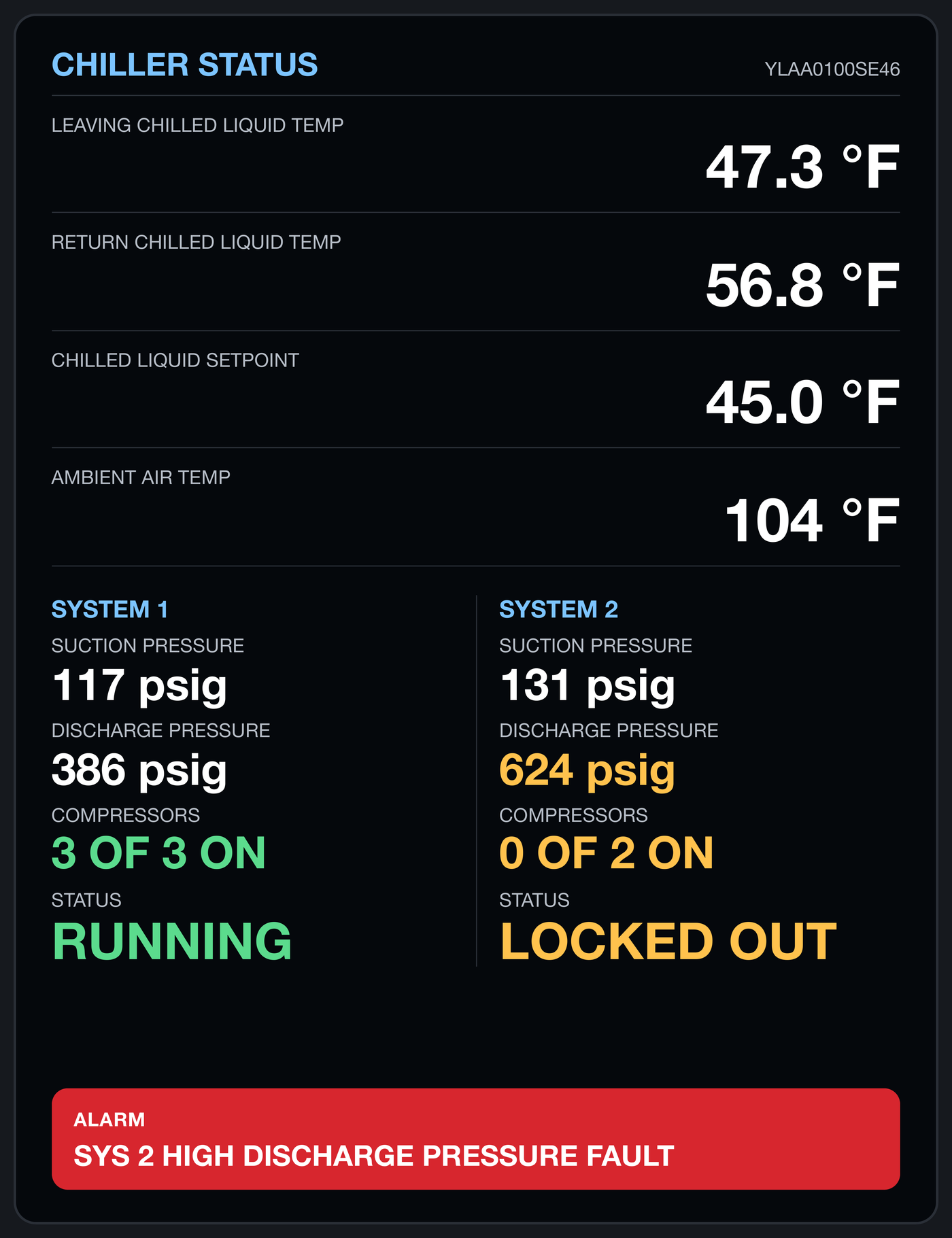
A chiller display is below. Look at it through the glasses.
Look at this
You:Press to wake.
Blue:Here.
You:Take a picture and outline the problem and tell me what might be going on.
Blue:Taking a photo through your glasses.
Blue:Outlines the alarm and tells you what it means.
You:Single tap to sleep.
Step 7
Blue takes direction
Nothing to look at this time. Just talk.
You:Press to wake.
Blue:Here.
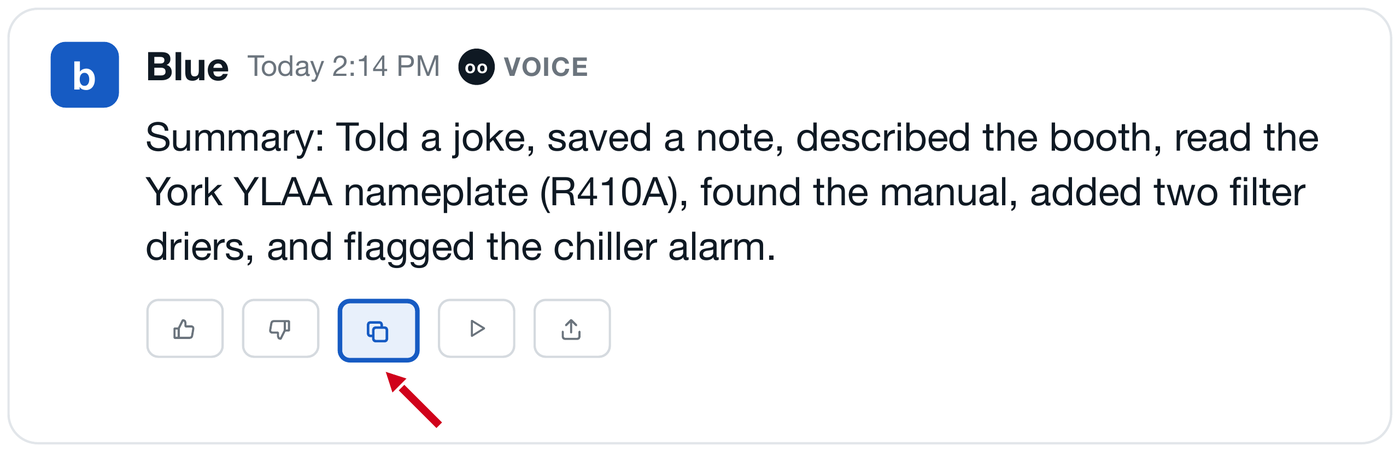
You:Alright, give me a summary of everything we just did.
Blue:Reads you a summary.
You:Make it shorter.
Blue:Reads it again, shorter.
You:Single tap to sleep.
In the app
That summary is in the app now. You use it in the last step.
Step 8
Send your summary to Airwave Support
Take out your phone and open the Airwave app. Four taps.
1
Tap the copy button under Blue's summary.
2
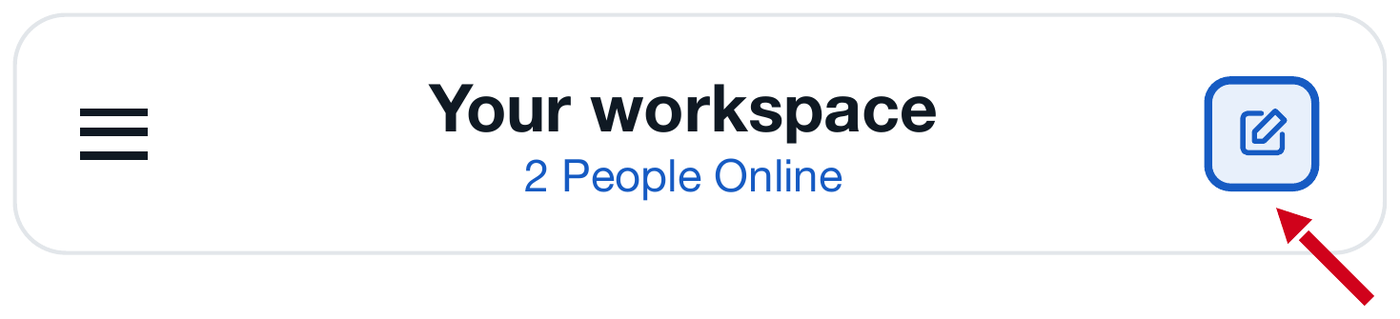
Tap the pencil icon at the top right.
3
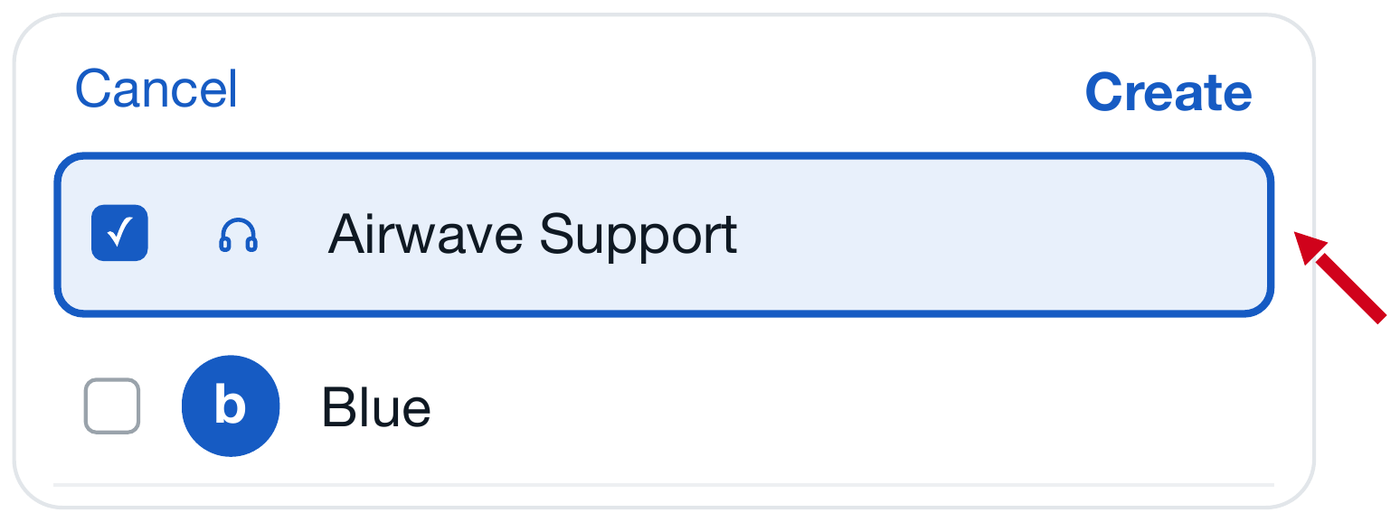
Check Airwave Support, then tap Create.
4
Paste the summary and send it to us as a chat.
That chat is us. Anything you want Blue to handle that it does not yet, say it there.
Done
What you just did
Eight things, in the order you did them.
1Blue talks hands free
5Blue looks things up
2Blue keeps notes
6Blue reads the screen
3Blue sees
7Blue takes direction
4Blue reads a nameplate
8Send your summary to Airwave Support
Thanks for giving Blue a try. If there is something you do in the field that Blue should handle and we have not thought of, tell us in the app. We would rather hear it from you.
 Hold
 Tap once